When a project’s future feels uncertain, the teams that win are the ones who prepare for multiple outcomes. Vantagepoint gives you practical tools to create alternate plans, isolate proposed scope changes, and compare everything side-by-side, so you can explore options, reduce surprises, and make clearer decisions.
Why This Matters
Projects change. Staffing shifts, clients ask for adjustments, and scopes expand. Scenario planning and disciplined change-order workflows let you test different staffing or schedule choices, quantify impacts on labor and margin, and pick the path that best protects delivery and profitability. The goal is not just to capture snapshots, but to give teams a clear, auditable record of contractual decisions and the ability to compare alternatives quickly.
The Four Plan Features (What They Are and When to Use Them)
Scenarios: Test “What If” Options
Create alternate “what-if” plans (for example: optimistic, conservative) to experiment with scope, schedule, fee and team without touching your live plan. Scenarios are ideal for exploring tradeoffs before you commit.
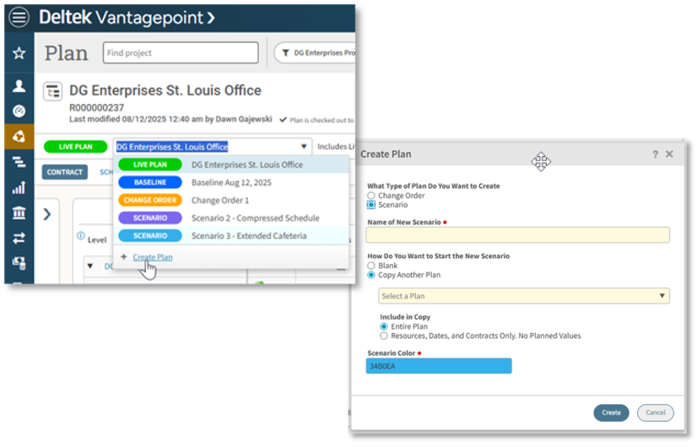 Test optimistic and conservative plans side by side, before committing to your live project plan
Versions: Full Snapshots of a Plan
A version is a complete copy of the plan at a particular moment. Use versions when you want an exact, point-in-time record of everything in the plan, which is useful for rollback, audits, or detailed comparisons.
Change Orders/Additional Services: Isolate Proposed Scope Changes (Then Merge)
Model proposed scope additions or contract changes in their own change order plan. This isolates the evaluation process without disrupting the execution of the active plan. When a change is approved, merge it into the live plan and into the live baseline. This workflow preserves continuity while giving you a controlled way to evaluate alternatives before accepting the change.
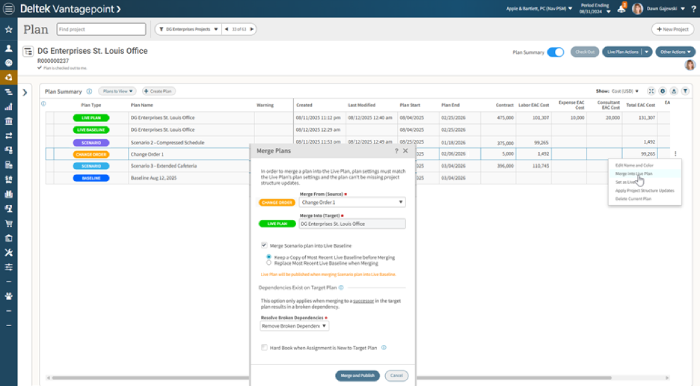 Evaluate scope changes safely, then merge approved work into the live plan and baseline
Multiple Baselines: Contractual Truth, Not Daily Edits
A baseline captures the contractually agreed scope at a milestone or after an approved change. Baselines should represent the original scope plus approved changes, not every day-to-day tweak. Keep prior baselines as a running record so you can do retrospective analysis of contractual changes over time.
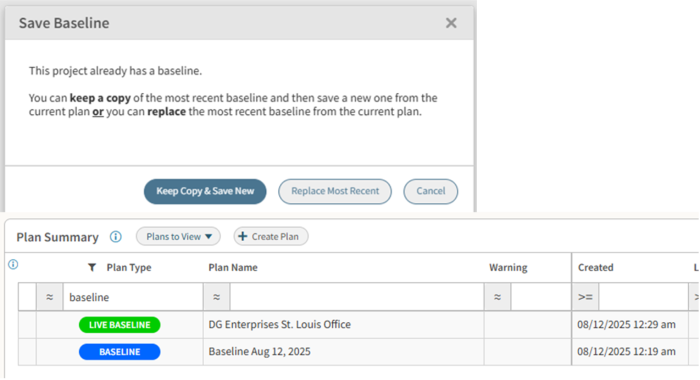 Capture approved scope at key milestones, not every daily plan change
Plan Summary: The Single Place to Compare and Decide
The plan summary gives you a consolidated view of labor, expenses, consultants, and units inside each plan, and lets you compare scenarios, versions, baselines, and change orders side-by-side. Instead of flipping between tabs for labor, expenses, and consultants, you can now see totals across these dimensions and understand the overall impact of each plan. This allows teams to quickly evaluate tradeoffs and present a clear picture to stakeholders.
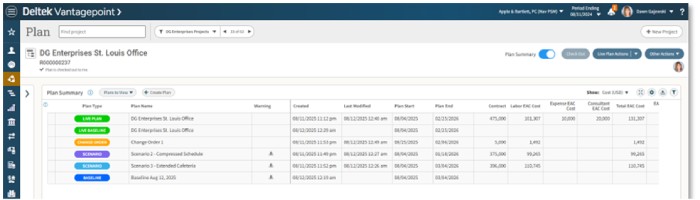 See the full impact of every plan in one consolidated view
Everyday Workflows: How Teams Use These Features
- Negotiating a change order or additional service: Build the change in a change order plan, compare its totals with the active plan in the plan summary, present impacts to stakeholders, and merge only when approved.
- Handling a staffing squeeze: Create scenarios (hire contractors, phase work, or reassign staff), compare schedule and margin impacts, and select the least risky option.
- Bidding smarter: Model ideal and conservative delivery plans. Use side-by-side totals to compare delivery approaches before final proposal.
- Learning after delivery: Keep the original baseline and the final plan, then compare them to understand how the project evolved contractually and how the plan changed over time. Use these insights for retrospective analysis to improve future project estimates and processes.
Simple Habits That Make These Features Powerful
- Name plans clearly. Use consistent naming (e.g., Baseline_2025-01-01, COA-Proposed, Optimistic-v2).
- Use change order plans for proposed scope changes. Keep score changes separate until they’re approved.
- Save baselines at contract milestones. Capture plans at proposal, approval, and handoff. Keep earlier baselines for retrospectives.
- Reserve versions for full snapshots. Save copies of your plans over time to keep a version history.
- Run a short demo. A quick 10–15 minute walkthrough helps teams adopt these patterns fast.
Try This One-Step Experiment
Create a change-order plan for a small, current scope change and compare it to your active plan in the plan summary. You’ll immediately see labor, expense, and consultant impacts, while getting comfortable with isolating proposed work until it’s approved.
Getting Started & Next Steps
Vantagepoint puts resource planning where teams do their work: scenarios to experiment safely, versions to snapshot, change orders to isolate, and baselines to record contractual truth, all connected by a plan summary for fast, confident comparisons.
Stay Up to Date with Deltek Vantagepoint
Join the Vantagepoint Customer Town Hall to learn what’s new in the solution.